
Official Shopify Partner

Built with artificial intelligence
Official Shopify Partner
Official Shopify Partner
Built with artificial intelligence
Official Shopify Partner

Tutorials
/
Setup
/
Installing Perfect Cart on Your Shopify Store
Learn how to install Perfect Cart, connect your Shopify store, and enable the cart drawer so you can start improving conversions in just a few minutes.
6 min watch
Beginner friendly
Updated Jun 2026

482 store owners completed this
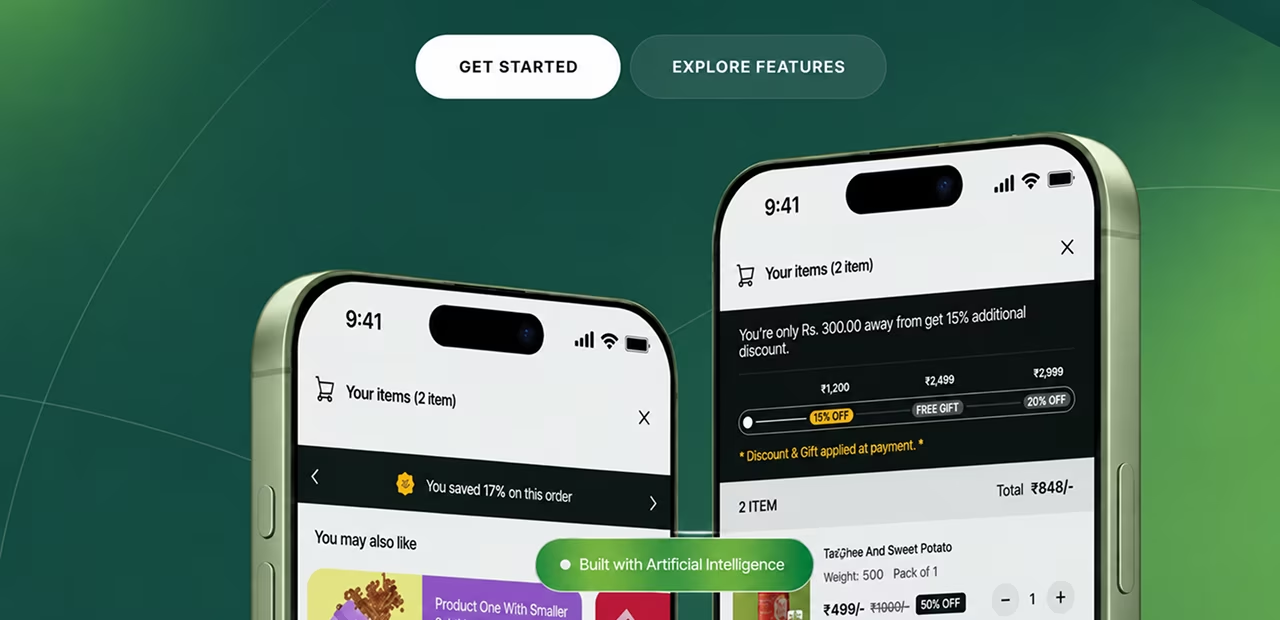
This tutorial walks you through installing Perfect Cart on a live Shopify store. By the end, your storefront will have a working cart drawer, a starting layout, and a live connection back to your Perfect Cart dashboard so every change you make later shows up instantly for shoppers.
What you'll need
Admin access to your Shopify store
A free or paid Perfect Cart account
About 5 minutes, no coding required
0:12
From your Perfect Cart dashboard, select Add store and sign in with your Shopify admin credentials. Perfect Cart requests read and write access to your theme and checkout settings only it never touches customer or order data.
Use the store owner account the first time you connect. You can invite teammates with limited access afterward.
1:48
Perfect Cart adds a single snippet to your theme automatically. If your theme is customized, you can also drop the tag in manually just before the closing </body> tag:
<!-- theme.liquid -->
<script src="https://cdn.perfectcart.app/drawer.js" data-store="{{ shop.permanent_domain }}"></script>
Save your theme and refresh your storefront the drawer icon should now appear next to your cart.
3:05
Pick a drawer layout that's closest to your finished look Minimal, Bold, or Editorial. Every element inside is editable later, so this choice just sets your starting point for colors, spacing, and card style.
4:20
Add a product to your cart from the live storefront and confirm the drawer opens, quantities update, and totals recalculate correctly. Test on both desktop and mobile before moving on.
Use the store owner account the first time you connect. You can invite teammates with limited access afterward.
5:32
Once testing looks good, toggle Drawer status to Live from your dashboard. Shoppers will now see the Perfect Cart drawer immediately — no theme republish needed for future changes.
Clear your browser cache and confirm the theme you edited is the one currently published. Unpublished or duplicate themes won't reflect the change.
Yes. Each store connects separately from your dashboard and keeps its own settings, offers, and templates.
Was this tutorial helpful?
Get your drawer live on your storefront in under five minutes.